Cracker Barrel Old Country Store® Gift Card
Limits between $5-500
Terms and conditionsCracker Barrel Old Country Store® Gift Cards are the perfect one-size-fits-all gift. Enjoy craveable homestyle food in our restaurant or pick out one-of-a-kind retail finds in our Old Country Store -- or both! Best of all, Cracker Barrel Gift Cards have no fees and never expire.
Why Send a Cracker Barrel Old Country Store® Gift Card with CardSnacks?
Unlike a standard digital gift card, CardSnacks turns your gift into an experience.
- Instant delivery by text or email
- Personalize with heartfelt (or funny!) message
- No shipping needed — delivered digitally in minutes
Related Food & Dining Gift Cards
Looking for something similar? Explore other popular food & dining gift cards:
How It Works
Select your gift card and set the amount.
Choose from 1000s of ecard designs to make your gift card extra special.

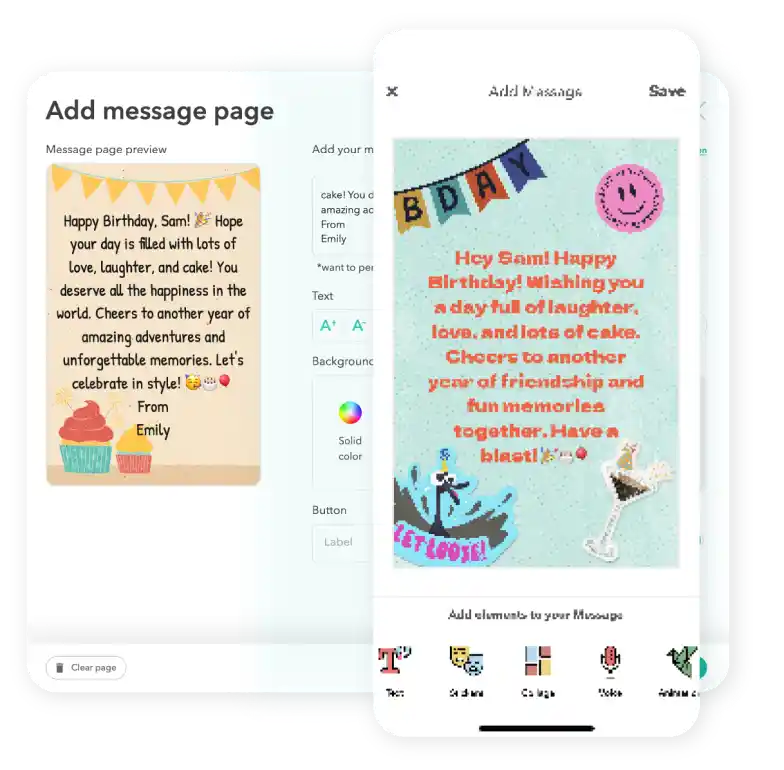
Personalize your card with a heartfelt message, stickers, gifs, & more.
Schedule your card to be sent instantly or for a future date via email or text message

Cracker Barrel Old Country Store® Digital Gift Card FAQs
Gift cards can currently be sent internationally to recipients in Canada, the United Kingdom, and Australia. At this time, sending to other countries is not supported. Please note that availability may vary by brand and region, so we recommend reviewing the specific terms and conditions of each gift card before purchasing to ensure it can be delivered to your intended recipient.
Definitely. If your recipient didn't receive or open the ecard with the gift card attached, you can easily resend it from your CardSnacks account—either to the same number/email or a different one.
Yes! Every gift card sent through CardSnacks is paired with a personalized eCard, so you can include your own message to make it more meaningful.
Yes! The recipient does not need to have the CardSnacks app. They'll receive the gift card via a link that can be opened on any device.
Yes, you can change the delivery date for your Cracker Barrel Old Country Store® after you have it scheduled. You can update this by clicking the 3 dots next to the recipient's name and then hit "Edit Schedule Date."